📐 Workplane Guide — WinFusion 2025
Workplane Management —
WinFusion Mein Multi-Face Machining Ka Smart Way! 📐
WCS Setup | Tool Orientation | UCS Custom | 3+2 Multi-Face | 5-Axis Positioning
One Component — Multiple Workplanes:
Har face ke liye alag workplane — 1 setup mein sab possible!
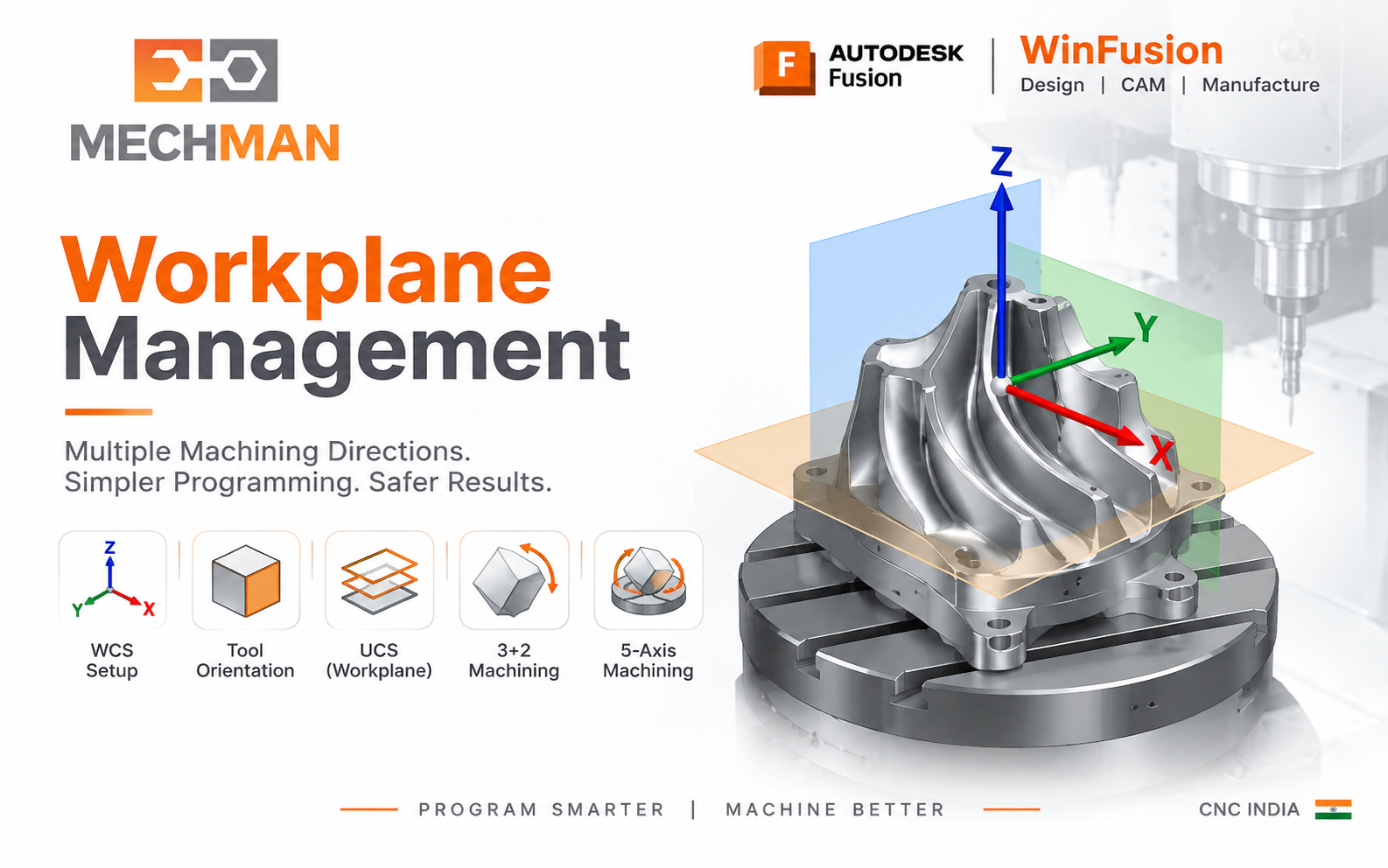
Workplane Management = Machine ko batana ki part ko kis direction se machine karna hai aur X,Y,Z axis ki direction kya hogi. Multi-face components mein har face ke liye workplane define karo — ek intelligent setup mein sab machine karo!
Workplane ka simple matlab hai machine ko batana ki part ko kis direction se machine karna hai aur X, Y, Z axis ki direction kya hogi! 4-axis, 3+2 aur 5-axis machining mein same component ko different angles aur different faces se machine karna hota hai — yahin WinFusion mein Workplane Management important ho jata hai!
“Workplane banana easy hai — correct machine angle, safe movement aur ready-to-run NC code generate karna actual implementation hai!” ✅
WinFusion workflow: CAD Model → Machine Definition → Main WCS → Different Tool Orientations → Toolpaths → Machine Simulation → Proven Post → NC Program! ✅
📐 Workplane Management Kya Hai — Mould Component Example!
Traditional 3-Axis vs WinFusion Workplane — Same component, completely different approach!
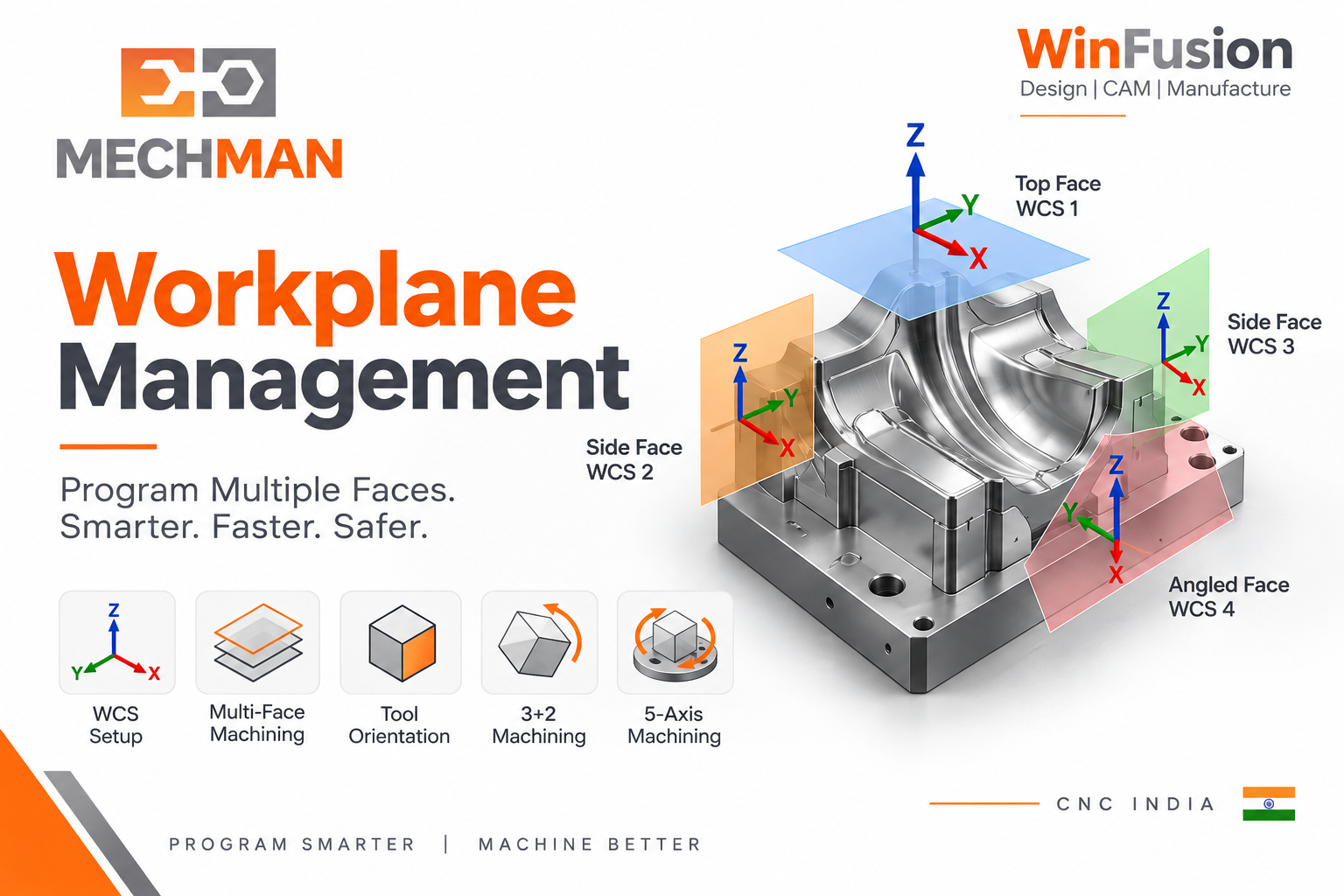
Mould component: Top Face, Side Face, 45° inclined face, opposite side holes — ek baar WinFusion mein workplanes define karo → 4 different orientations → ek controlled manufacturing setup!
❌ Traditional 3-Axis:
- Component re-clamp manually ⚠️
- New zero set kar ⚠️
- Separate NC program banao
- 4 setups → 4x setup time!
- Datum error risk ⚠️
✅ WinFusion Workplane:
- All workplanes define ⭐
- One program structure
- Machine rotary handle karta hai ⭐
- Fewer manual re-setups ✅
- Better accuracy!
WinFusion Workplane Management = Multiple faces ek coordinated setup mein systematically machine karo! ✅
⚙️ WinFusion Mein WCS / Workplane Define Karne Ke 4 Ways!
WinFusion Setup mein WCS orientation — multiple methods available!
Model ki existing face/plane use karke Z-axis aur X-axis define karo. Sabse common method — basic aur straightforward!
Z-axis direction pehle define karo, phir X-axis. WCS precisely control. Inclined features ke liye useful!
Design workspace mein custom UCS banao → Manufacturing Setup mein directly reference karo. Reusable workflow — complex orientations ke liye best!
Defined WCS ko flip ya rotate karo. Quick adjustments — mirror setups aur opposite face ke liye ideal!
Custom UCS workflow: Reusable coordinate system → Complex component mein baar-baar easily reference karo! ✅
🔧 Tool Orientation — Operation Level Par Override!
Har operation ke liye new Setup zarori nahi — Tool Orientation se smart override karo!
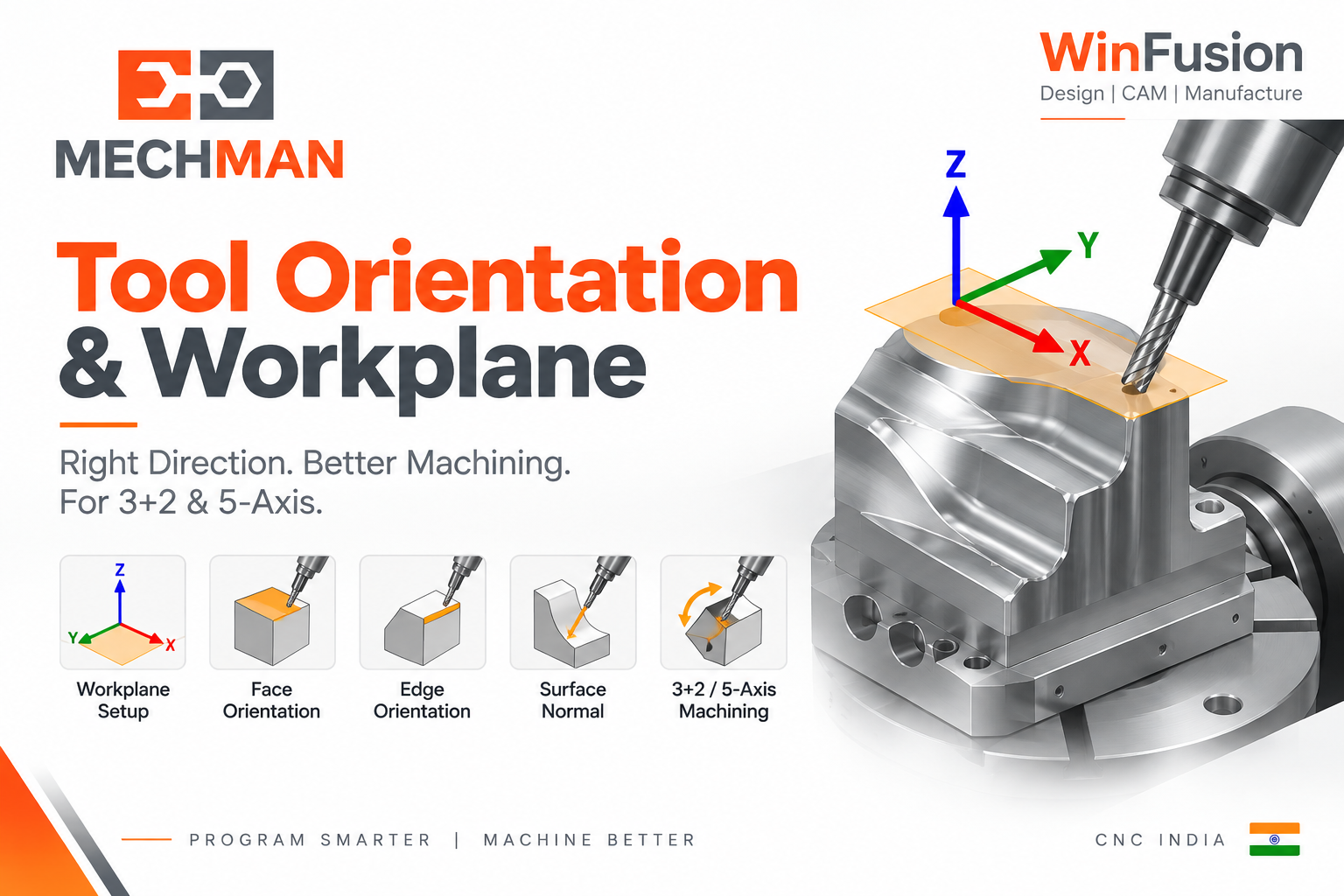
WinFusion Tool Orientation: Setup WCS ko operation level par override karo. Face ya edge se Z/X direction define karo — Turn, Tilt, Align to View, Surface Normal options use karo!
→
Face se Z-axis define ⭐
Surface select = Z direction set
→
Edge se X-axis define ⭐
Edge select = X direction
→
Surface Normal ⭐
Curved/inclined surfaces
→
Turn / Tilt ⭐
Angle-based adjustments
→
Align to View
View-based quick orient
⭐
Smart operation-level control! ✅
📌 3+2 Machining Mein Workplane — Most Practical Use!
3+2 (Indexed 5-axis) mein workplane management sabse common application hai:
WP 1
Main Setup — Z0° — Top Face Machining ⭐
A0° C0°
WP 2
Side Face — A90° — Side Pocket/Drilling
A90° C0°
WP 3
Opposite Side — A-90° — Mirror Features
A-90° C0°
WP 4
Inclined Feature — A45° C30° — Angled Machining ⭐⭐
A45° C30°
✅
4 Workplanes → 1 Coordinated Program → Machine Simulation → NC Code! 🚀
⚠️
Important: CAM Workplane ≠ Machine Rotary Angle! ⭐
Final A/B/C output machine kinematics aur post processor par depend karta hai!
❌ Missing Piece:
CAM me orientation correct hai lekin post processor machine ke rotary configuration ko correctly handle nahi karta → NC output me wrong rotary angles! ⚠️
✅ Complete Solution:
Machine Definition + Proven Post Processor + Machine Simulation = Workplane CAM se correct machine rotary output! ⭐
WinFusion = Correct Workplane + Correct Machine Definition + Proven Post + Simulation = Production Ready NC! ✅
WinFusion Complete Workplane Workflow:
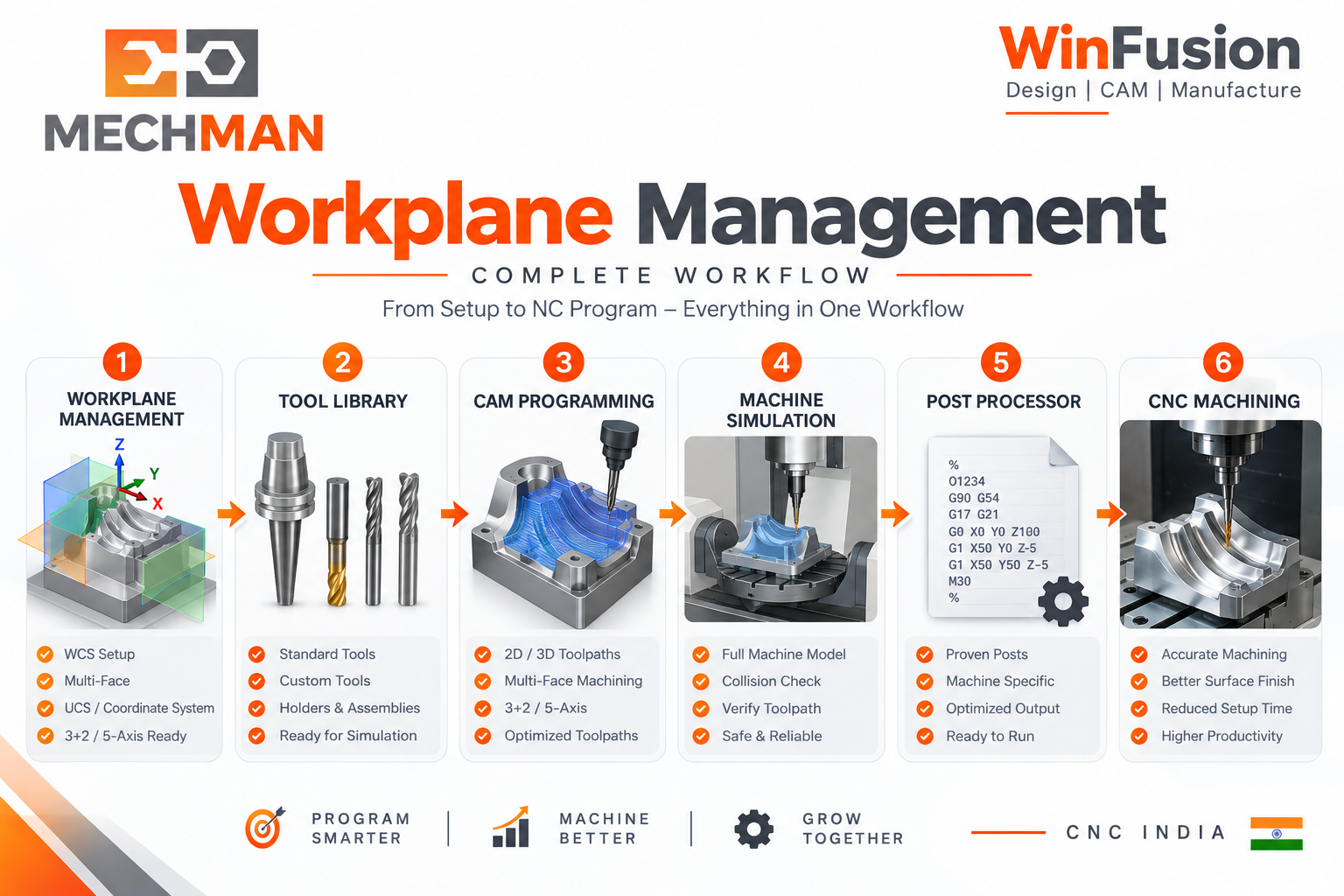
WinFusion: CAD Model → Workplane/WCS Define → Tool Orientations → Toolpaths → Machine Simulation (rotary angles verify) → Proven Post → NC Code → CNC Machine. Complete implementation = no workplane surprises on machine!
CAD Model
→
WCS Define ⭐
→
Tool Orient
→
Simulation ⭐
→
Proven Post
→
NC → CNC ✅
Workplane Management — Multi-Face Machining Ka Foundation! 📐
Top, Side, Inclined aur multi-axis machining orientations define karo — WinFusion mein WCS, Tool Orientation aur Custom UCS se sab systematically program karo!
WinFusion: WCS + Tool Orientation + Custom UCS + Machine Simulation + Proven Post = Multi-Face Production Ready! 📐🚀
📐
Workplane | WCS | 3+2 Machining | Post Processor | Simulation
Mechman Solutions — WinFusion
Autodesk Authorized Partner | Vadodara, Gujarat | Since 2015
www.mechmansolution.com
© 2025 Mechman Solutions | WinFusion — Workplane Management Guide | Vadodara, Gujarat