
Today’s manufacturing and engineering industries move at a very high speed. So, efficiency in 3D modeling has become more essential than ever. The point is that saving time, while still maintaining accuracy, can drastically change your game, no matter if you are the one who designs machinery, the parts of an automobile, or consumer products. Fusion 360 mechanical design is just the right tool to respond to your needs.
This is a versatile tool that allows you to parametric model, simulate, and collaborate all in a single platform. If you wish to make your work processes more efficient and be able to produce high-quality mechanical designs in less time, then this blog is your guide to the best practices of quick 3D modeling in Fusion 360.
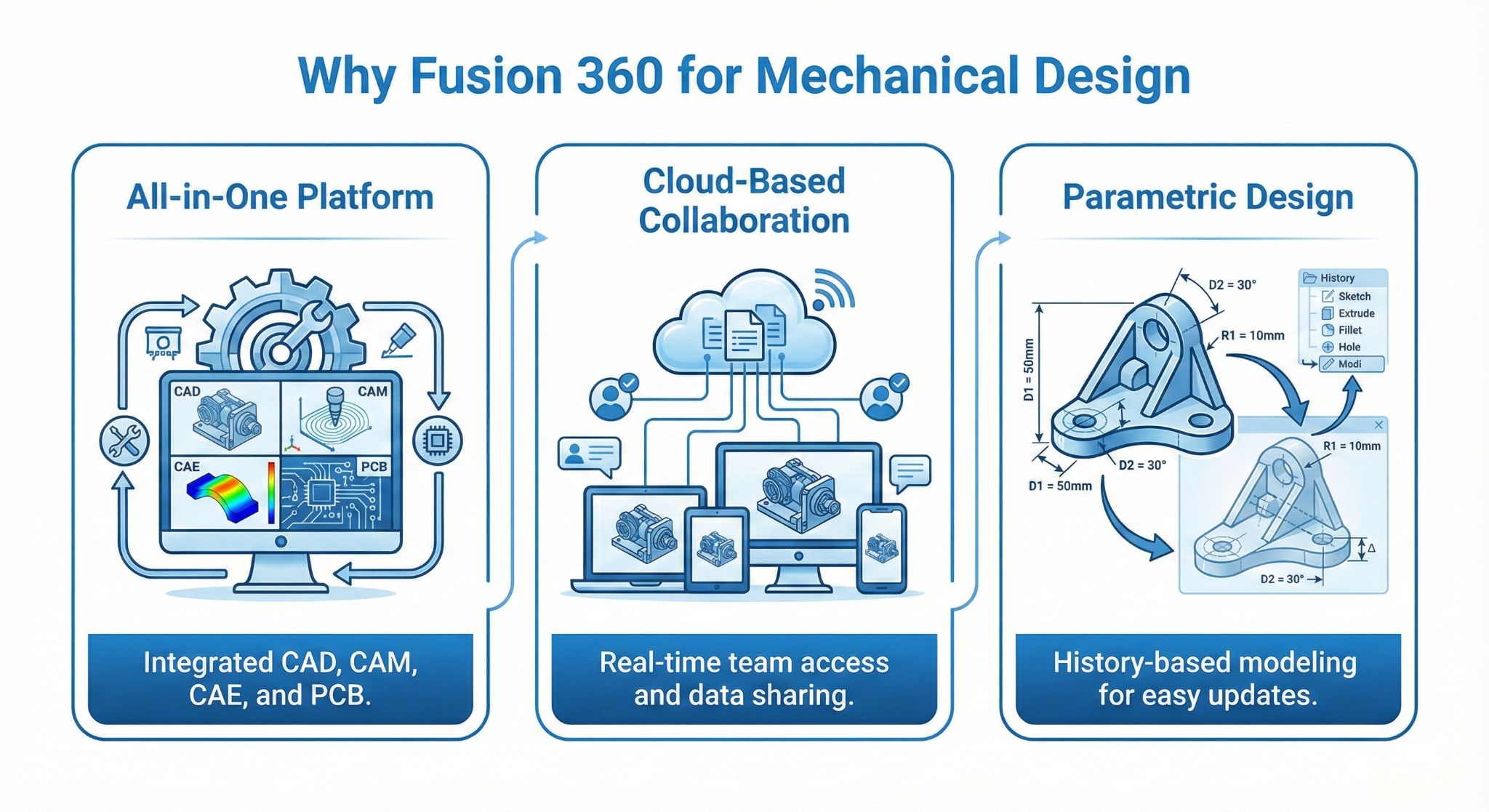
Why Fusion 360 for Mechanical Design
Fusion 360 is the most preferred tool among engineers and designers due to a number of reasons:
1. All-in-One Platform: Fusion 360 is capable of 3D modeling, simulation, and CAM, and it can handle the entire process of design.
2. Cloud-Based Collaboration: The more the people, the faster the work. Design cycle time can be cut down by the fact that multiple team members are able to work simultaneously on a project.
3. Parametric Design: Changes are easy to do because there is no need to start over again.
Using Fusion 360 mechanical design ensures that your design process will not only be quicker, but you will also benefit from more flexibility and fewer mistakes.
Best Practices for Faster 3D Modeling
1. Start with a Clear Sketch
A solid sketch that is well thought out is the basis of any work-efficient 3D model. Instead of employing 3D features right away boldly, invest time in setting dimensions and constraints in 2D. This will cut down error instances and will save you from the hassle of doing the same work again.
2. Use Parametric Features
Parametric modeling is one of the major features of Fusion 360. This feature allows users to define parameters for dimensions and features so that changes can be made without the need for manual intervention in every component. For example, when the change in shaft diameter is initiated, all of the features that depend on it will get updated automatically.
3. Organize Your Components
When dealing with assemblies, components should be well organized into folders and logical sub-assemblies. Part names should also be considered, and duplication should be avoided. This will make it easier for you to move from one place to the other, and the risk of making mistakes will be lower when working with your team.
4. Leverage Templates and Patterns
Fusion 360 is a software designed to help you with the reuse of your work, either in templates or pattern features. If most of the time your work consists of similar parts, then a template library will be your time saver. Some of the features, such as circular and rectangular patterns, are capable of quickly multiplying the number of instances that you want.
5. Minimize Complex Features Early
The moment you start adding complexities that you don’t need will most likely be the moment you slow down your work processes. The most important thing is to focus on the first and foremost structure, and only then move on to further steps and add fillets, chamfers, as well as other details to the basic model.
6. Take Advantage of Fusion 360 Add-Ins
There are many add-ins available for the mechanical design part of Fusion 360 work. Among them are bolt generation, fastener insertion, and gear creation tools, which can be your utmost helpers in speeding up the tasks that are highly repetitive and that, otherwise, will take a lot of your time.
Simple Table: Key Tips at a Glance
| Tip | Benefit | Feature used in Fusion 360 |
|---|---|---|
| Start with sketches | Avoid having to redo your work | Sketch Environment |
| Use parametric features | Quick updates | Parameters/User Parameters |
| Organize components | Easy collaboration | Browser/Assembly Management |
| Leverage templates & patterns | Save design time | Patterns/Design Templates |
| Minimize complex features | Faster modeling | Extrude/Revolve/Fillet tools |
| Use add-ins | Automate repetitive tasks | Fusion 360 Add-Ins |
Collaboration and Version Control
One more best practice in Fusion 360 mechanical design, which is highly recommended, is the software’s great advantage: cloud-based collaboration. Multiple engineers are working on one assembly, and Fusion 360 is managing automatic version control, so no overwriting and replacement of each other’s work is possible. This feature ensures an untroubled workflow and reaches the goal of faster project completion.
Final Thoughts
One of the key points to master Fusion 360 mechanical design is the aspect of working, not just the knowledge of using the software/tools. As a matter of fact, by utilizing these best practices, you are empowered not only to save your time in modeling but also to evade costly mistakes and to produce highly accurate designs that can be effortlessly altered.
FAQs
1. Can beginners use Fusion 360 for mechanical design effectively?
Indeed! The parametric and cloud-based features of Fusion 360 are very intuitive and allow even beginners to create complex models with minimal training. The learning curve becomes much easier when starting from sketches and templates.
2. How can I speed up assembly modeling in Fusion 360?
The best way to do that is by utilizing sub-assemblies, clear naming, and patterns. This will break your large assembly into smaller components, thus reducing the repetitive work, and you will also streamline your modifications by using patterns.
3. Are Fusion 360 add-ins really necessary for faster modeling?
These are not mandatory but greatly advantageous. Add-ins, being automatic in the realm of routine tasks, inserting bolts, nuts, or gears without your intervention, result in saving you a significant amount of time in mechanical design projects.
Contact Us
📞 +91 99137 89065
Also Read: Fusion 360 Course vs PowerMill Mastery: Which Autodesk Training Path is Right for You?