
The Fusion 360 post-processor might sound a little intimidating, but it can seriously improve your CNC projects. Whether you’re just doing this as a hobby or you’re a professional machinist, getting the hang of it can really save you time, cut down on mistakes, and just overall make your CNC process way smoother.
What is a Fusion 360 Post Processor
The Fusion 360 post-processor is a translator. Think of it this way: you create these cool designs in Fusion 360, and the post-processor takes those designs, figures out the best toolpaths, and converts them into a language your CNC machine gets – G-code. Not all CNC machines speak the same dialect of G-code. They all have slightly different ways of reading the code. The post-processor makes sure that your design is interpreted correctly by your specific CNC machine.
Without the right post-processor, things can get messy fast. Your machine might:
- Completely misunderstood what you’re trying to tell it to do.
- Moving the tools in the wrong way leads to major errors and damage to your material.
- End up wasting material or even damaging your machine, which is never a good thing.
The post-processor is a pretty important piece of the puzzle. It’s like the bridge that connects your digital design to the actual physical machining.
How to Set Up a Post Processor in Fusion 360
Don’t worry, the Fusion 360 post-processor is not as scary as it might sound. Here’s how to do it:
1. Open Fusion 360 and go to the Manufacture workspace. This is where all the machining magic happens.
2. Click on Setup and then Post Process.
3. From the list, pick the machine you’re using. Fusion 360 has a bunch of pre-made post-processors for different machines.
4. Choose where you want to save your G-code files. This is where the translated code will be stored.
5. Adjust any settings specific to your machine. This could include things like where the tools are located, how fast the spindle turns, or how quickly the tool moves.
Before you run a full job, test your post-processor with a little simulation or a sample piece. This can prevent huge, expensive mistakes down the line, especially when starting out. Small errors in the setting can cause the machine to cut off the material you planned.
Common Post Processor Settings
Here are some settings you’ll likely encounter:
| Setting | What It Does | Example |
|---|---|---|
| Tool Number | Assigns the tool for a particular operation | T1 |
| Spindle Speed (RPM) | Controls how fast the spindle rotates | 1200 RPM |
| Feed Rate | Controls the speed of the cutting tool | 300 mm/min |
| Coolant | Turns the coolant on or off | On |
| Machine Controller Type | Selects your CNC controller | Fanuc, Haas, etc. |
These are just some of the settings you might want to mess with. Getting them right for your machine is important for accuracy and speed.
Customizing Your Post Processor
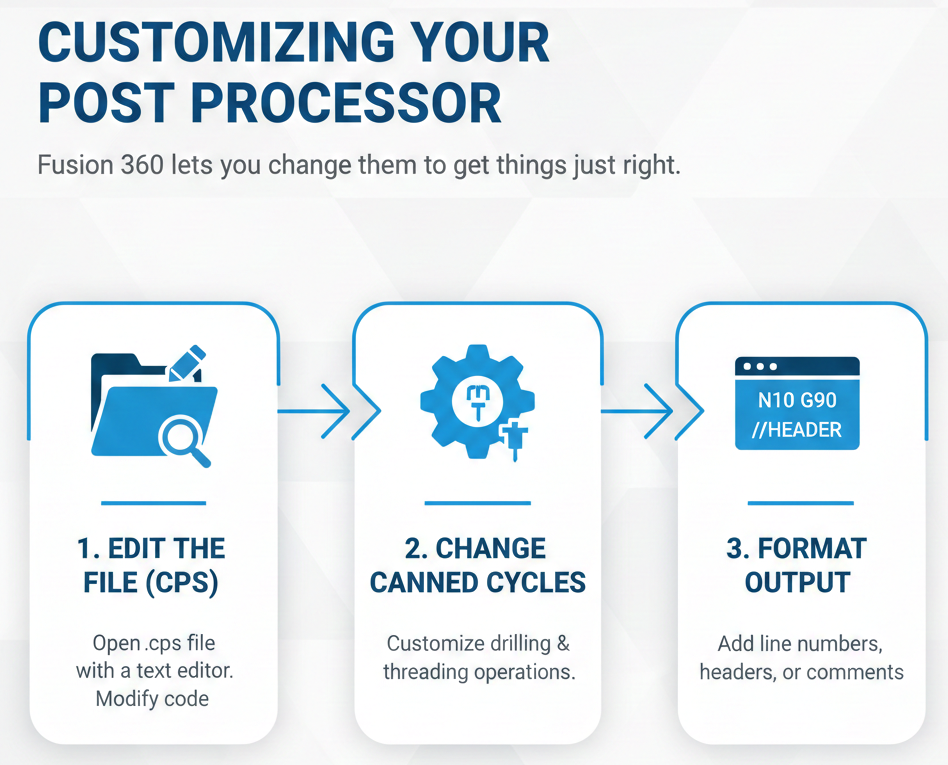
Sometimes, the regular post-processor won’t be perfect for your setup. Fusion 360 lets you change them to get things just right. Here’s what to do:
1. Find and edit the post-processor file: These files usually end in .cps. You can open them with any text editor and change the code.
2. Change canned cycles: If your machine does special things for drilling or threading, you can change the code to match.
3. Change how the output looks: You can change how the code looks to include line numbers, special headers, or comments.
Conclusion
A Fusion 360 post-processor is a helpful tool that turns your digital designs into real parts. Getting the hang of how to set up and change your post-processor can save you time, lower mistakes, and make your CNC process much better. Whether you’re new to this or just trying to make your machining better, learning about post-processors in Fusion 360 is worth the effort.
FAQs
1. Can I use the same post-processor for different CNC machines?
No, each machine is different. Make sure to pick or change a post-processor that works with your machine’s controller.
2. Is it okay to change a post-processor file?
Yes, but make a backup first. Small changes can do a lot, so testing is key.
3. Where can I find post-processors for my machine?
Autodesk has a library, and many CNC makers offer post-processors for their controllers.
Contact Us!
📞 +91 99137 89065