📦 Stock Setup Guide — WinFusion 2025
Stock Setup Explained —
CAM Program Ki Real Foundation! 📦
Raw Material Define | WCS Setup | Rest Machining | Simulation Accuracy | Cycle Time
📦 STOCK (Raw Material)
105 × 65 × 30 mm
Actual raw block
✅ FINISHED COMPONENT
100 × 60 × 25 mm
Final part size
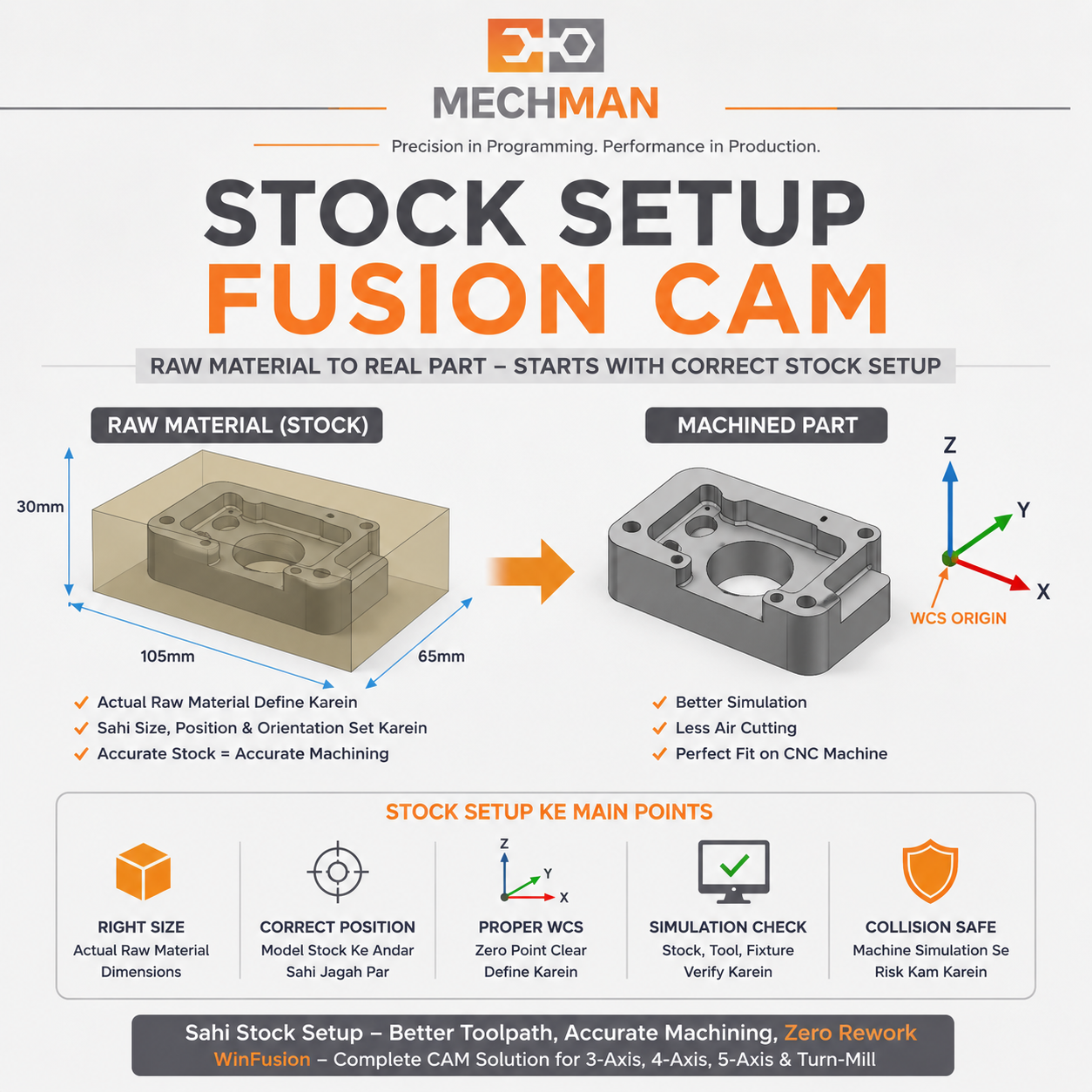
Stock Setup = Fusion CAM ko batana ki starting raw material kahan hai, kitna bada hai aur final component ke around kitna material remove hona hai. Yahi foundation hai puri CAM programming ki!
CNC machining mein Stock Setup ek basic step lagta hai — lekin actual production mein yahi aapke complete CAM program ki foundation hoti hai! Agar stock ka size, position ya orientation wrong define hua, to best toolpath hone ke baad bhi extra air cutting, incorrect depth, wrong material removal, collision risk aur cycle-time increase ho sakta hai!
WinFusion workflow mein focus sirf toolpath nahi — Stock → Setup → Tool Library → Toolpath → Simulation → Post → CNC Machine — complete production-ready process!
Stock Setup sikhne ke baad simulation accurate hogi, air cutting reduce hogi aur prove-out easy hoga! ✅
📦 Stock Kya Hota Hai?
Simple Language Mein: Stock = Raw Material jisme se final component machine hona hai!
📦 STOCK (Raw Material)
105 × 65 × 30
Actual block jo aapne purchase kiya
✅ FINISHED COMPONENT
100 × 60 × 25
Drawing mein jo dimension hai
CAM ko exact pata hona chahiye: Starting mein material kahan hai + Final model ke around kitna material remove karna hai! ✅
🔧 Fusion CAM Mein Stock Define Karne Ke 4 Methods
Model ke around additional material define karo:
Example:
Side: +2mm | Top: +3mm | Bottom: 0mm
Model dimension change ho to stock bhi auto-update! ✅
Actual raw material ka exact size enter karo:
Example:
Purchasing se mila 150×100×50mm block
Predefined raw-material sizes ke liye perfect! ✅
CAD model mein already created stock body use karo:
- Complex casting/forging shapes ⭐
- Irregular raw material
- Custom billet shape
Most accurate simulation ke liye! ✅
Previous setup ka result next setup ka stock!
- Op-1 complete → Op-2 stock accurate
- Rest machining perfect ⭐
- Multi-setup jobs ke liye
Multi-op jobs mein extremely useful! ✅
⚠️ Wrong Stock Define Karo — Ye Sab Galat Ho Sakta Hai!
Real-World Consequences of Wrong Stock Setup:
WARNING!
❌
Extra Air Cutting
Tool empty space mein move karta rehta hai
❌
Wrong Depth of Cut
Tool deep cut le sakta hai ya material miss ho
❌
Incorrect Simulation
CAM simulation aur actual machine mismatch
❌
Cycle Time Increase
Unnecessary machining passes add ho jate hain
❌
Rest Machining Fails
Previous op ka actual material condition unknown
⭐
WinFusion Correct Karta Hai
Sab issues prevent hote hain! ✅
📍 Stock Position + WCS — Ye Connection Samajhna Zaroori Hai!
Sirf stock size correct karna enough nahi — stock kahan positioned hai ye bhi equally important!
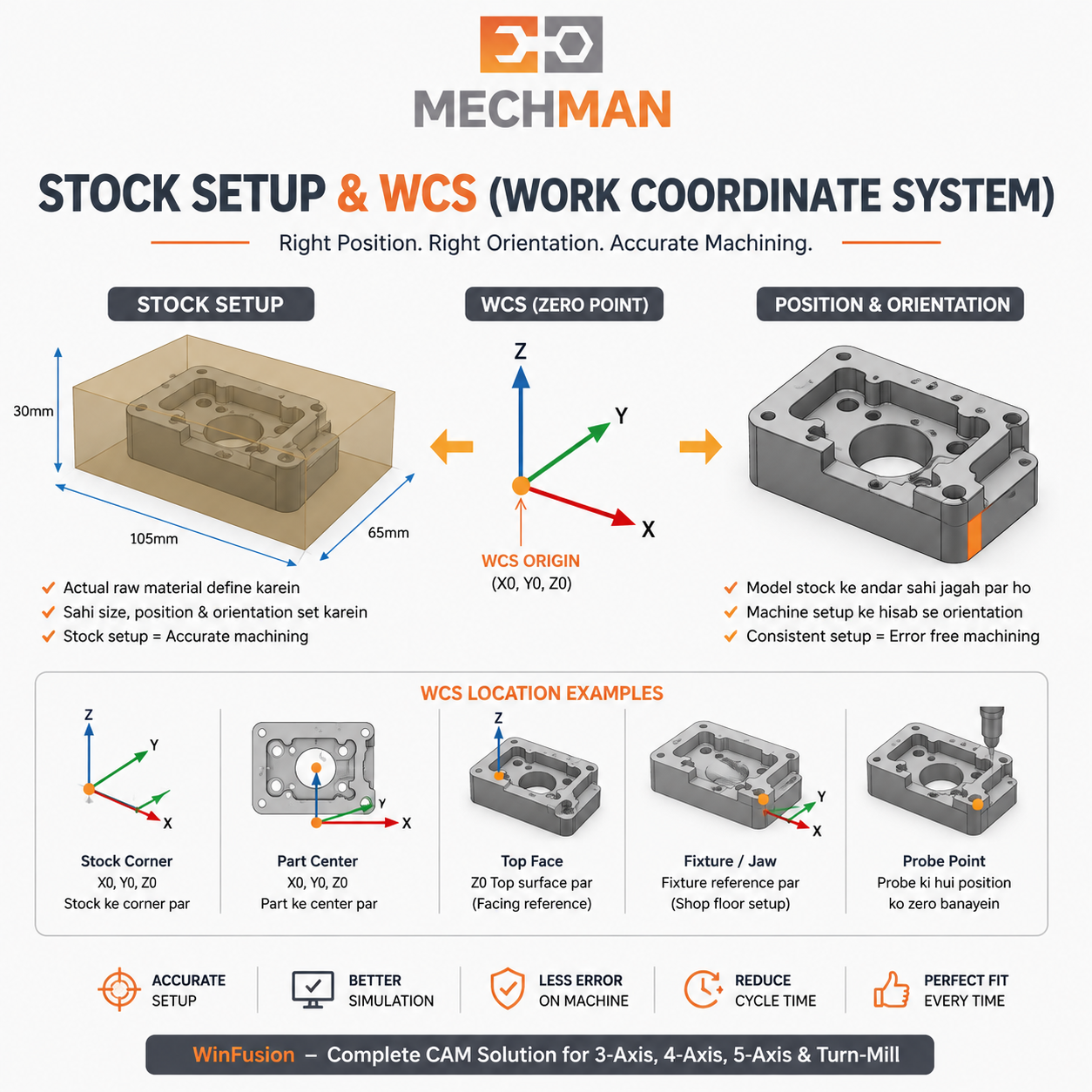
Stock position + WCS zero point — CAM mein jo define karo wahi machine par touch/probe hoga. Agar mismatch hoga to program galat jagah machine karega!
❌ Wrong WCS Example:
- Operator: Bottom face reference
- CAM: Stock center mein
- Result: Z-zero mismatch ⚠️
- Component deep ya shallow cut!
✅ Correct WCS Setup:
- CAM WCS = Machine Touch Point
- Stock corner / Top face / Center
- Operator aur CAM same logic ⭐
- Perfect first-off component! ✅
WCS key question: “X0, Y0, Z0 actual machine par kahan touch/probe hoga?” — CAM aur Shop-Floor same hona chahiye! ✅
⚙️ Alag-Alag Machines Mein Stock Setup Ka Impact
3
3-Axis — Cycle Time Impact!
❌ Wrong Stock (10mm extra):
Tool unnecessary 10mm empty space pe chalega → Air cutting → Slow!
✅ Correct Stock (2mm extra):
Tool directly material engage → Less air cut → Faster cycle!
4
4-Axis — Rotation Se Verify!
4-Axis mein component rotate hota hai — stock sab directions mein verify karo:
- Stock diameter vs component diameter
- Rotary clearance adequate? ⭐
- Chuck interference nahi?
- All rotated positions checked ✅
5
5-Axis — Most Critical! ⭐
Critical!
5-Axis mein component rotate+tilt hota hai — sirf top view se nahi dekhna!
Verify karo — sab clearances:
Stock ✓Component ✓Fixture ✓Tool ✓Holder ✓Machine ⭐
♻️
Rest Machining — Stock Awareness! ⭐
Stock awareness = Rest Machining perfect!
Op-1: Ø16 End Mill → Corners mein material remaining
Op-2: Ø6 Ball Nose → Only remaining material target kare ⭐
Less air cutting + Faster cycle! ✅
🔄
Turning & Turn-Mill — Stock Setup Equally Important!
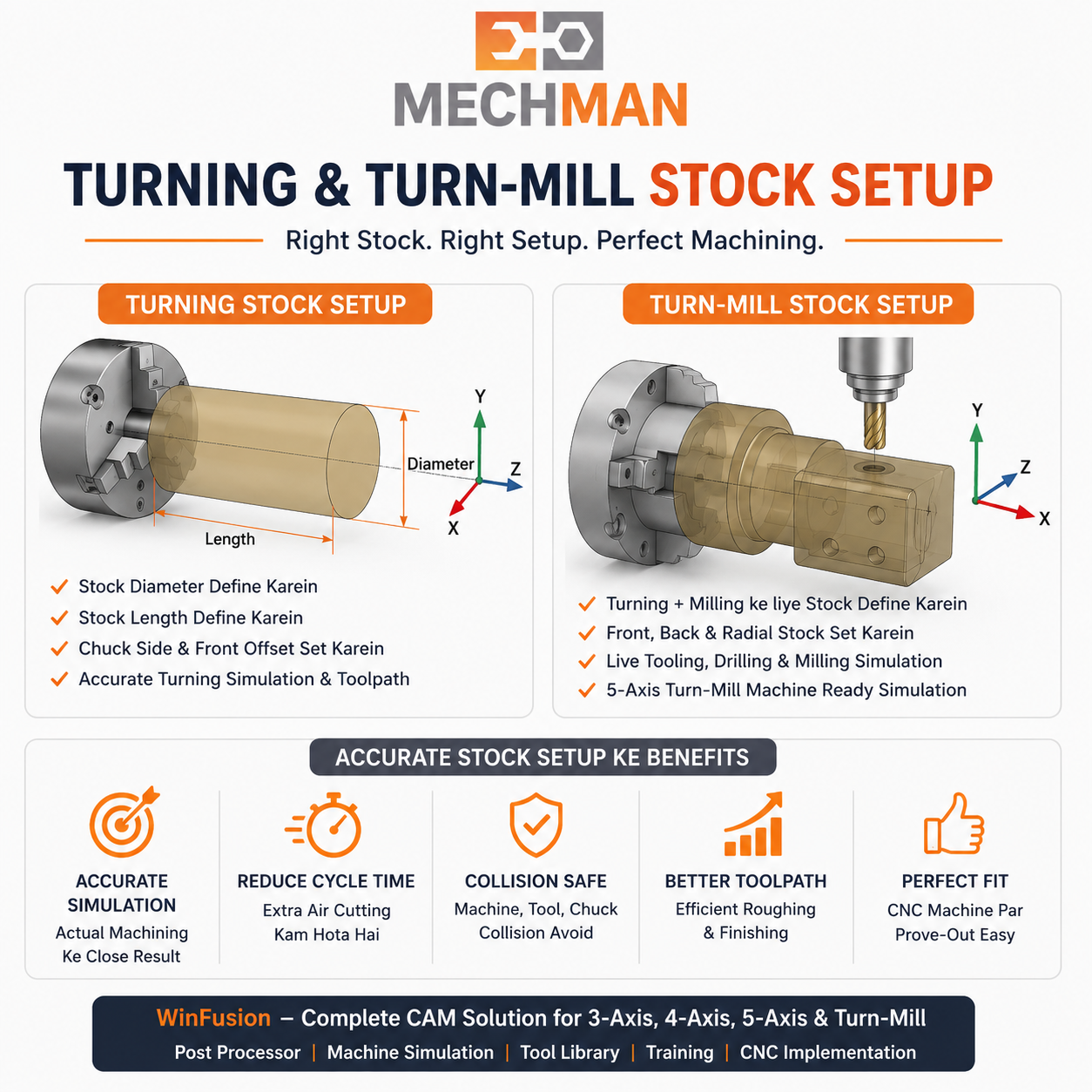
Turning mein stock = raw bar ka diameter + length. Turn-Mill mein accurately define karo — facing depth, roughing passes aur simulation actual se match karega!
❌ Wrong Turning Stock:
Facing depth wrong → Extra passes → Cycle slow → Simulation mismatch!
✅ Correct Turning Stock:
Diameter + Length + Front Offset + Chuck side — accurately define karo! ⭐
WinFusion — Production-Ready CAM Workflow 🚀
Complete WinFusion Implementation Chain — Stock se CNC Production Tak:
Stock Setup ⭐
→
WCS Setup ⭐
→
Tool Library
→
CAM Toolpath
→
Post + Sim ⭐
→
CNC Production ✅
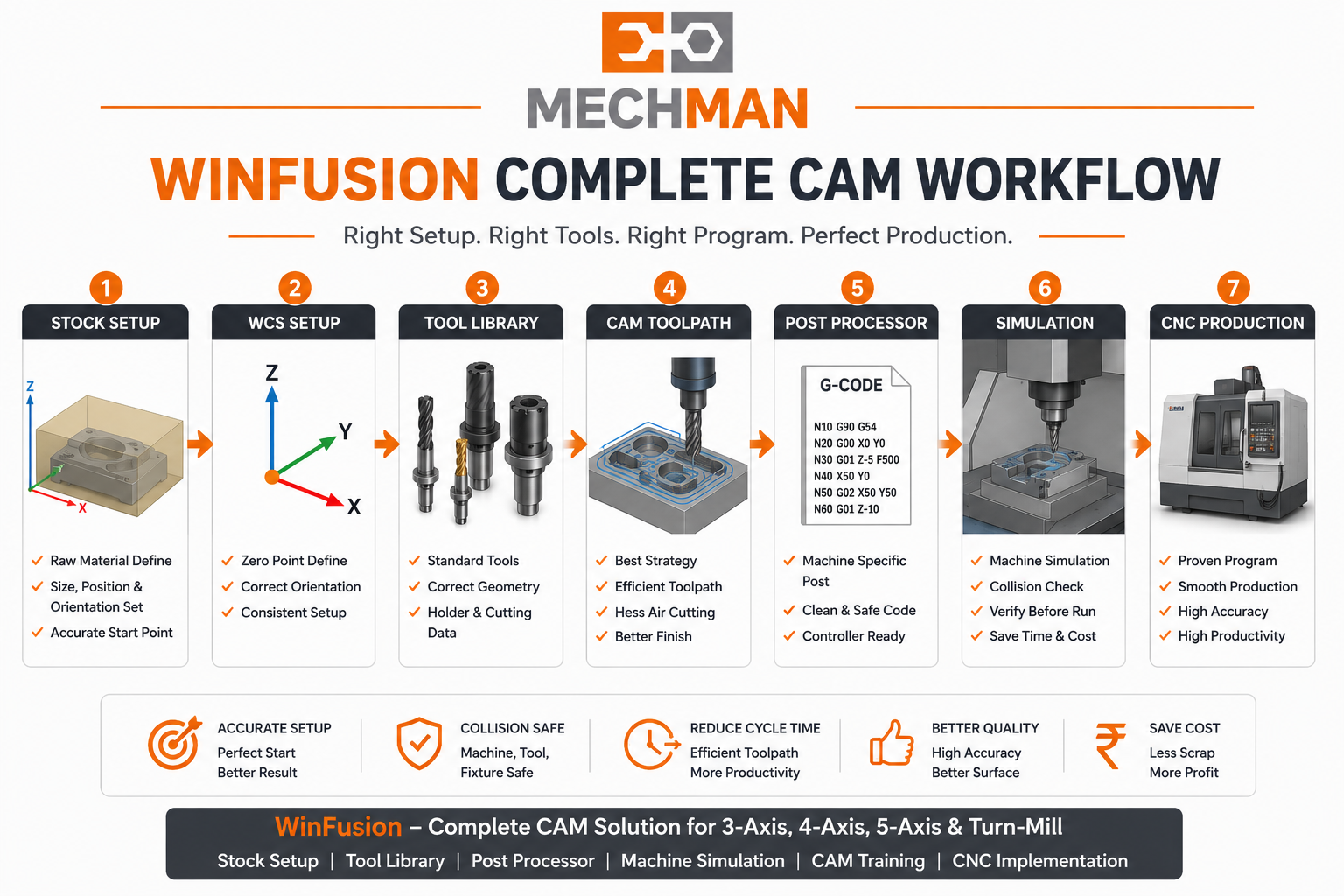
WinFusion: Software lena ek part hai — real challenge hai usse actual CNC production ke saath properly implement karna. Hum isi mein help karte hain!
✅ Correct Stock Setup Ke 8 Benefits:
✓Accurate CAM simulation ⭐
✓Air cutting reduce
✓Rest machining better ⭐
✓Setup mistakes identify easy
✓3/4/5-Axis workflow reliable
✓Turning sim realistic
✓Cycle time optimized ⭐
⭐Prove-out easy! ✅
📦
Stock Setup | WCS | Post Processor | Simulation | Training
Mechman Solutions — WinFusion
Autodesk Authorized Partner | Vadodara, Gujarat | Since 2015
www.mechmansolution.com
© 2025 Mechman Solutions | WinFusion — Stock Setup Explained Guide | Vadodara, Gujarat